


|
|
|
|
|
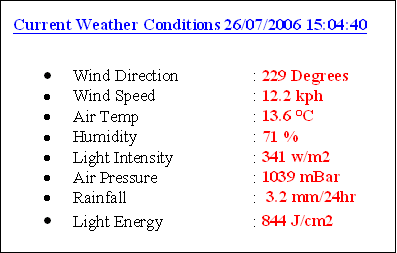
This is the simplest report with one text Html page of the main real-time readings. It is updated whenever the PC application updates the real-time display.
This has the largest network overhead as it transfers a large graphics image of the PC app’s Real-Time display each time it updates. NB the Real-Time display MUST be visible in the foreground on the PC for this to work. Best suited for where the file can be copied directly to the server rather than using FTP to transfer the file.

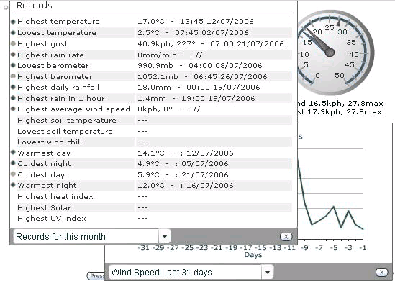
This is the most comprehensive report. It displays not only the graphical Real-Time data but also a summary of the month, year and all-time data and it shows graphs of the main sensors over a range of time frames. This transfers3 different data files to the server.
The web app must be licensed for the server it runs on at a cost of $US25. The screen layout can be modified considerably by manipulation of the wdlconfig.xml file. Not all fields that are displayed by wdlive have data generated by Weather-Pro ie “Highest average wind speed” or “Lowest wind chill” are not generated by Weather-Pro.

The Web report setup is accessible from the “Tools/Options” menu or the toolbar shortcut. You can enable any one, two or all three web reports. If “Save to file” is selected then the “Browse” button will be enabled to help select the destination file.

Tick the “Enable “ box, then select the method to transfer the resulting data file to the server “Save to file” which will simply copy the file to the supplied filename or UNC or “ftp to server” which will use the “FTP Setup” section parameters to transfer the file to the server. NB only one FTP host can be setup for the web reports although each report could go to a different directory. If “Save to file” is selected then the “Browse” button will be enabled to help select the destination file.
Tick the “Enable “ box, then select the method to transfer the resulting data file to the server “Save to file” which will simply copy the file to the supplied filename or UNC or “ftp to server” which will use the “FTP Setup” section parameters to transfer the file to the server. NB only one FTP host can be setup for the web reports although each report could go to a different directory. NB the Real-Time display MUST be visible in the foreground on the PC for this to work. If “Save to file” is selected then the “Browse” button will be enabled to help select the destination path.
Tick the “Enable “ box, then select the method to transfer the resulting data files to the server “Save to file” which will simply copy the files to the supplied pathname or UNC or “ftp to server” which will use the “FTP Setup” section parameters to transfer the files to the server. NB only one FTP host can be setup for the web reports although each report could go to a different directory. This will transfer 3 files to the destination directory. “clientraw.txt” once per “real-time” screen update, “clientrawextra.txt” once per upload on data from the station and “clientrawdaily” once per day when the first upload from the station occurs.
This requires 3 parts, the “FTP Hostname”, “Username” and “password”. The password may be blank. The PC must also have access to the ftp host machine ie a permanent Internet connection. This will work over a dialup connection but is not recommended because the application will not disconnect the phone line.
The latest Weather-Display-Live software is available from http://www.weather-display.com/downloadfiles/weatherdisplaylive.exe (approx 2.5Mb). Download the latest version and run the self-extracting “weatherdisplaylive.exe” file. This will expand into about 10 files and 1 config folder. Read the “readme.html” file in this folder for the rest on the setup instructions. This will explain the changes needed to the index.html file and the wdlconfig.xml file. This file will also show you how to Purchase the software. This is currently (July 2006) US$25 and can be done online. You will need to know the URL of the website you intend to use. The software will work without this but you will see a large “EVALUATION COPY” message across the screen. A copy of this “readme.html” file for version 4.12 is in the Util directory of the Weather-Pro installation CD.
In the Util directory of the Weather-Pro Installation CD is a file called “wdlconfig.xml”. This should be used instead of the default file from the installation package. Rename the wdlconfig.xml file from the installation package to wdlconfig.org then replace it with this file.
Run you favourite browser then enter the URL to your report ie
http://www.weather-pro.com/wdlive/current.html for the simple text report.
http://www.weather-pro.com/wdlive/currentg.html for the graphical report.
http://www.weather-pro.com/wdlive/index.html for the weather-display report.
For the Text and Graphical report substitute current.html and currentg.html for the names you specified in the setup and use your own website name.